Auto-deploying to Google App Engine with GitLab CI
Autodeploy na Google App Engine s Gitlab CI. Every push to the repository ends with the app live on Google App Engine, and nobody runs a deploy command by hand. It takes five steps, and most of them are clicking through the Google Cloud console once.
php55 runtime used below is a first-generation App Engine runtime: it reached end of support in January 2024 and was deprecated in January 2026, so use a current PHP runtime. And instead of storing a service account key in a CI variable, GitLab can now authenticate to Google Cloud with Workload Identity Federation, which needs no long-lived key at all.What you need, and what App Engine is
Three things: a Google Cloud account, a GitLab account, and an app to deploy.
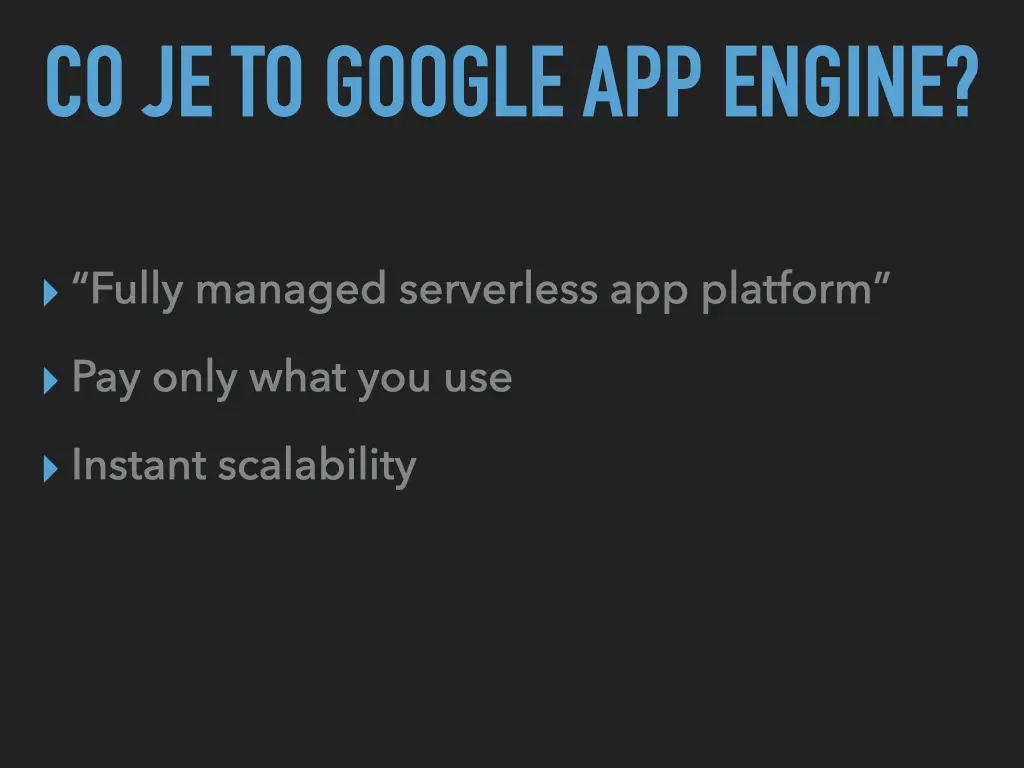
Google App Engine (GAE) is Google’s “fully managed serverless app platform”. You give it your code and a small config file, and it runs the app. You pay only for what you use, and it scales instantly. No servers to install or patch.
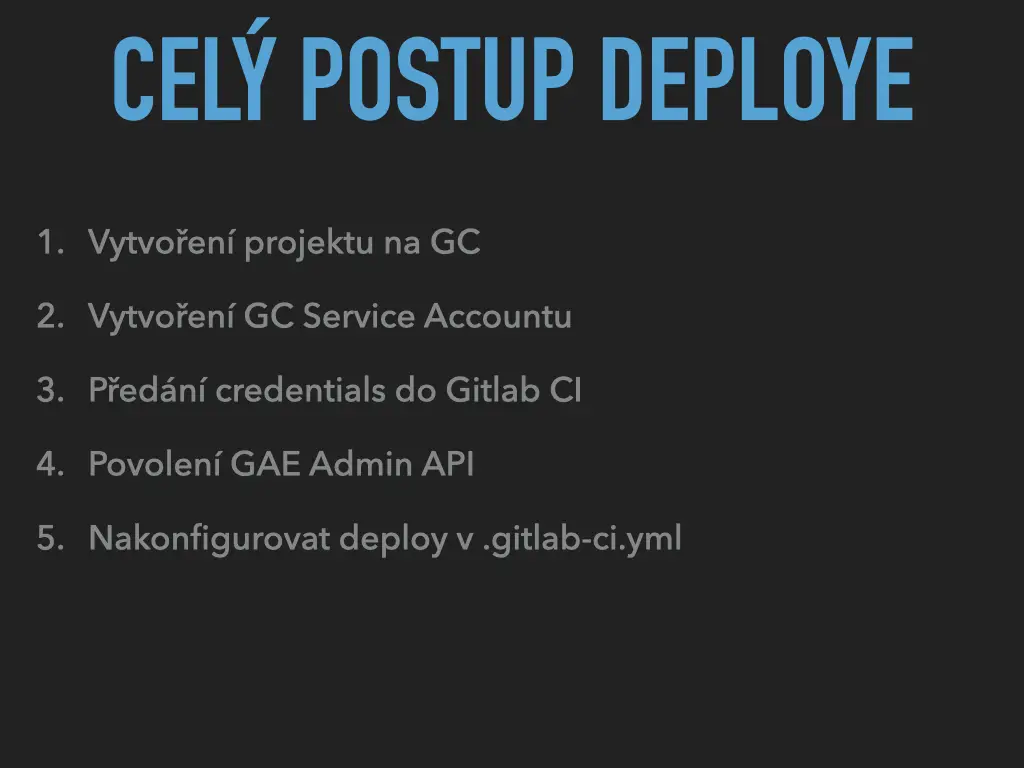
The whole process
- Create a project on Google Cloud.
- Create a Google Cloud service account.
- Hand its credentials to GitLab CI.
- Enable the App Engine Admin API.
- Configure the deploy in
.gitlab-ci.yml.
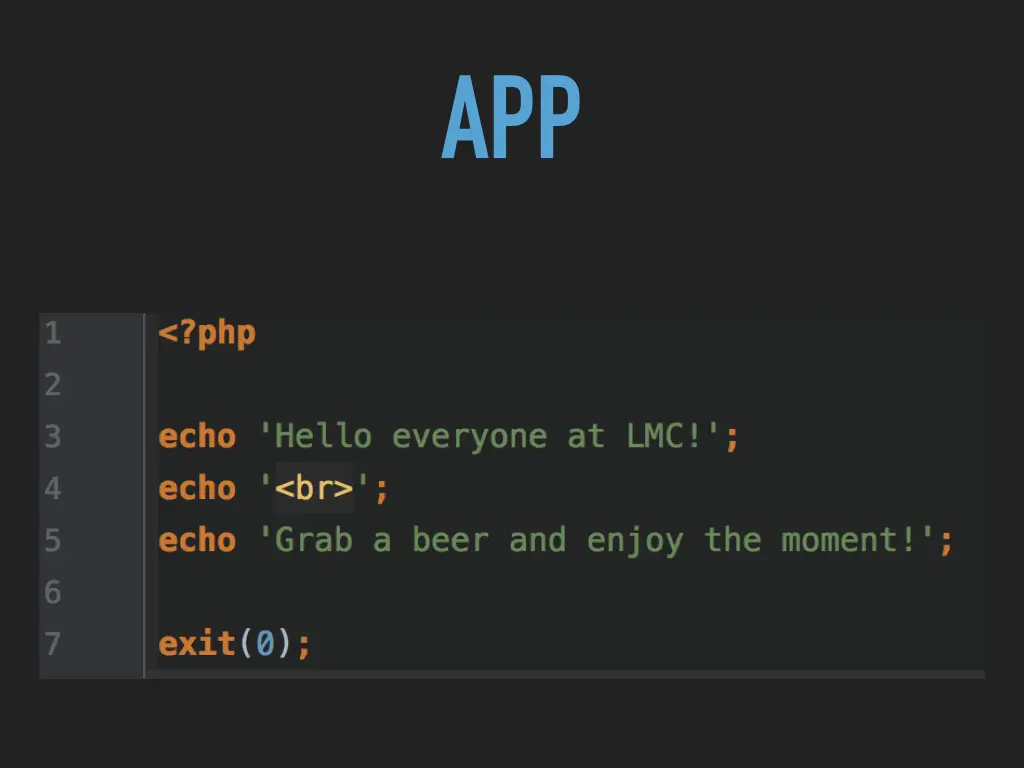
The app itself is as small as it gets:
<?php

echo 'Hello everyone at LMC!';
echo '<br>';
echo 'Grab a beer and enjoy the moment!';

exit(0);
Step 1: a project, and why not the CLI
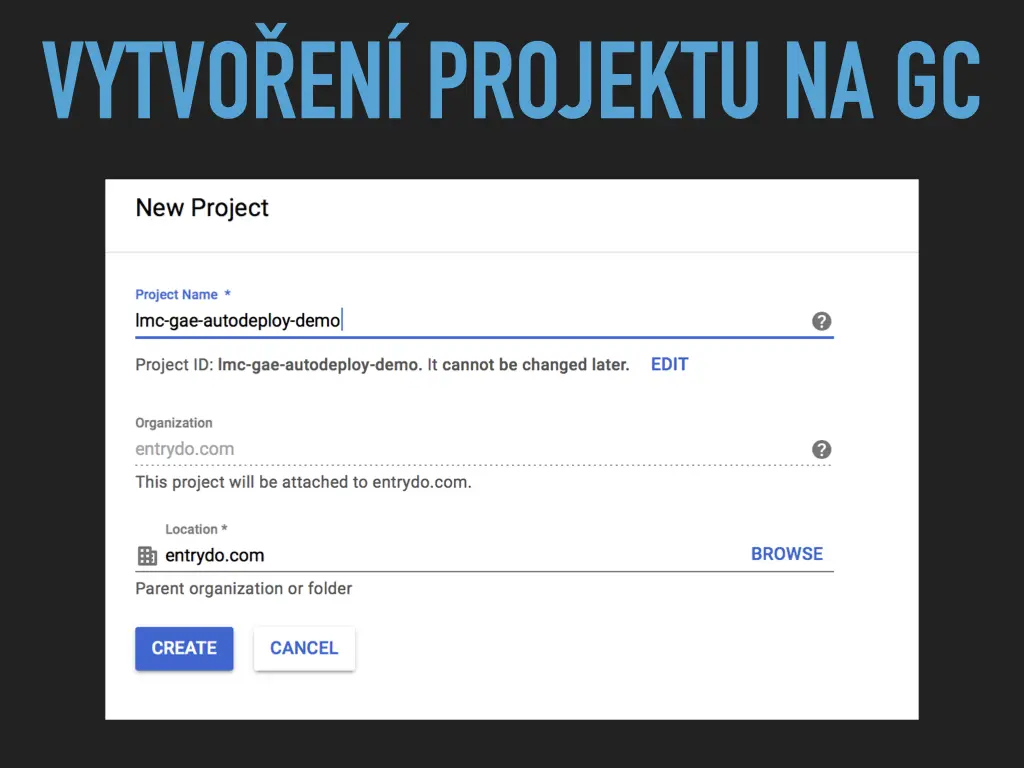
First a new project in the Google Cloud console. Mine was called lmc-gae-autodeploy-demo. Remember that the project ID can’t be changed later.
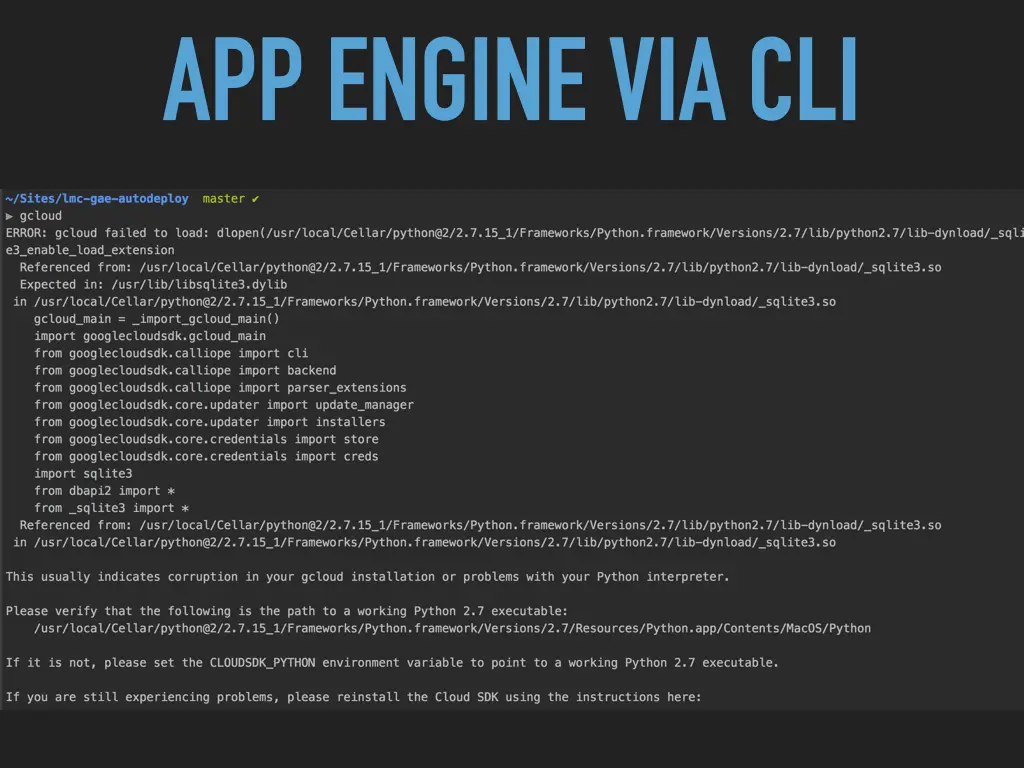
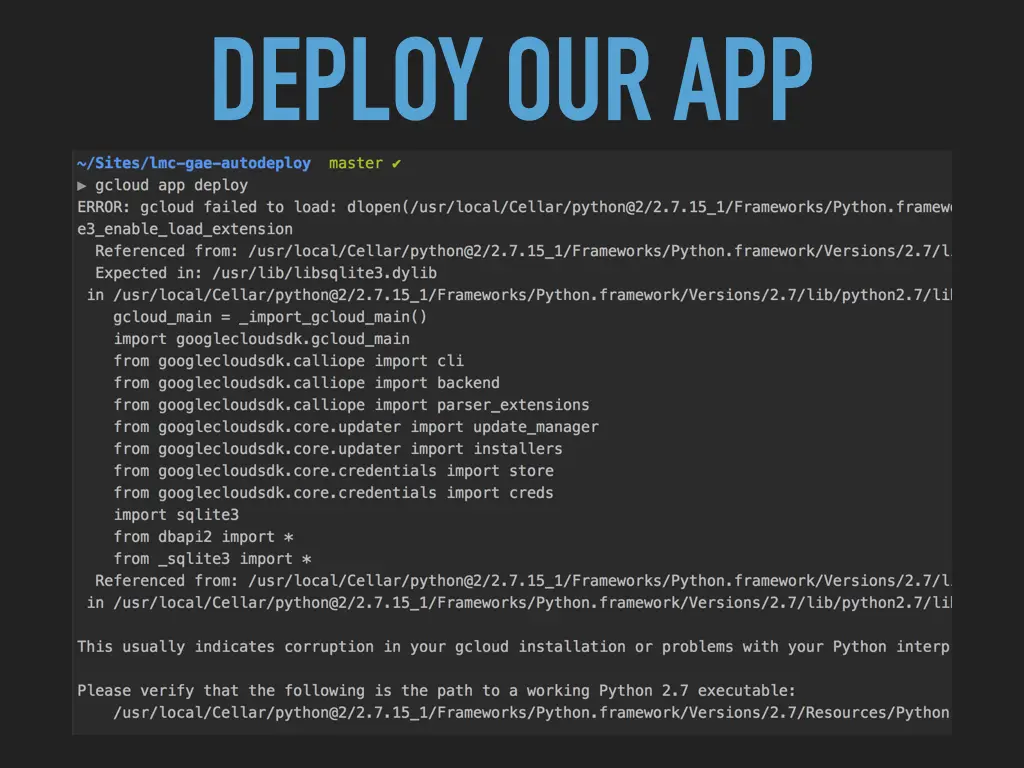
The “proper” way to set up App Engine is the command line: gcloud init. On my laptop that ended in a long Python traceback. The Cloud SDK was built on Python 2.7, and the local install failed to load its sqlite3 extension. gcloud app deploy failed with the same error. Nope.
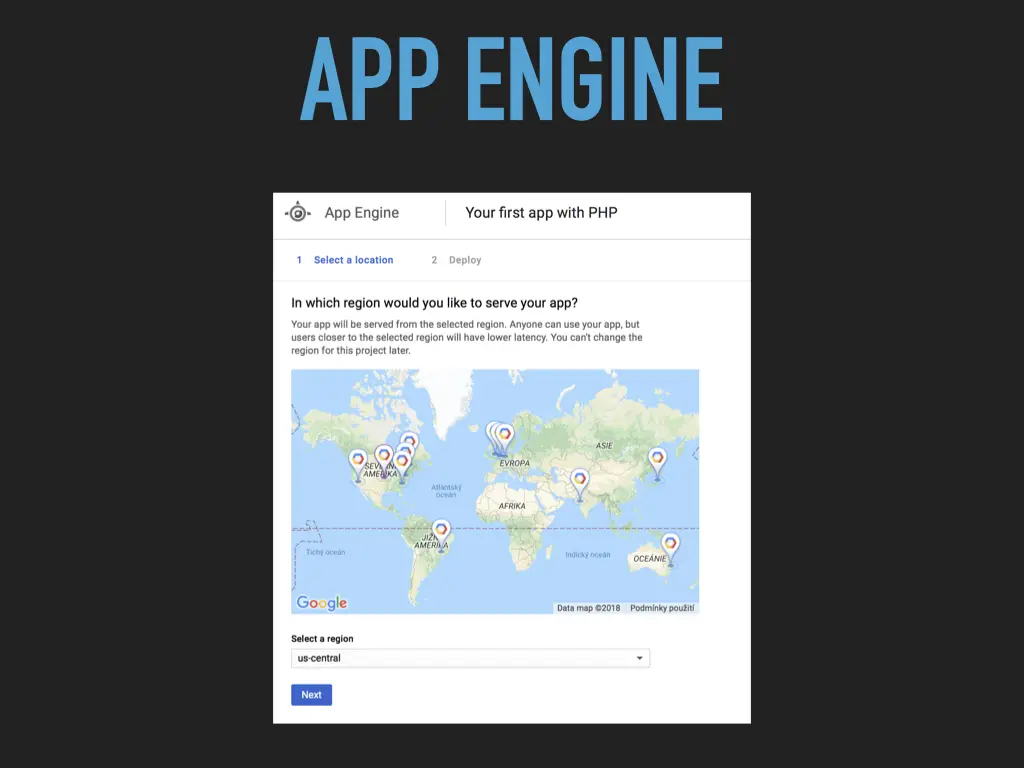
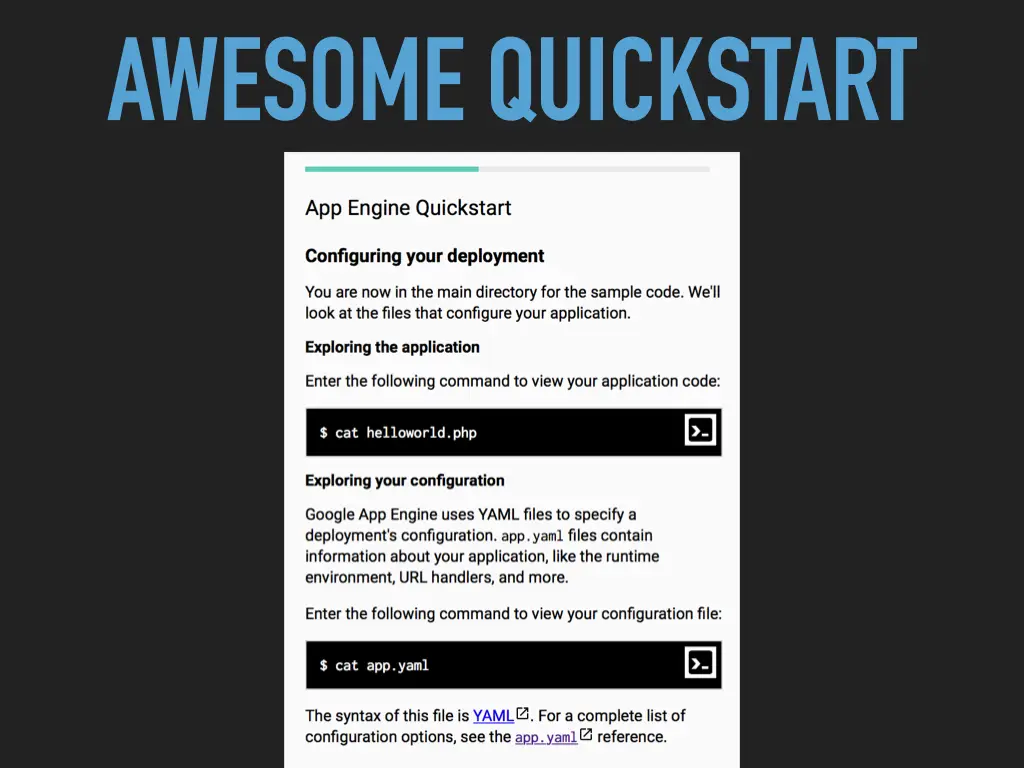
So I went through the web console instead. The App Engine section has an “Your first app with PHP” wizard: pick a region (I used us-central), then follow a quickstart that runs in the browser. It’s actually good.
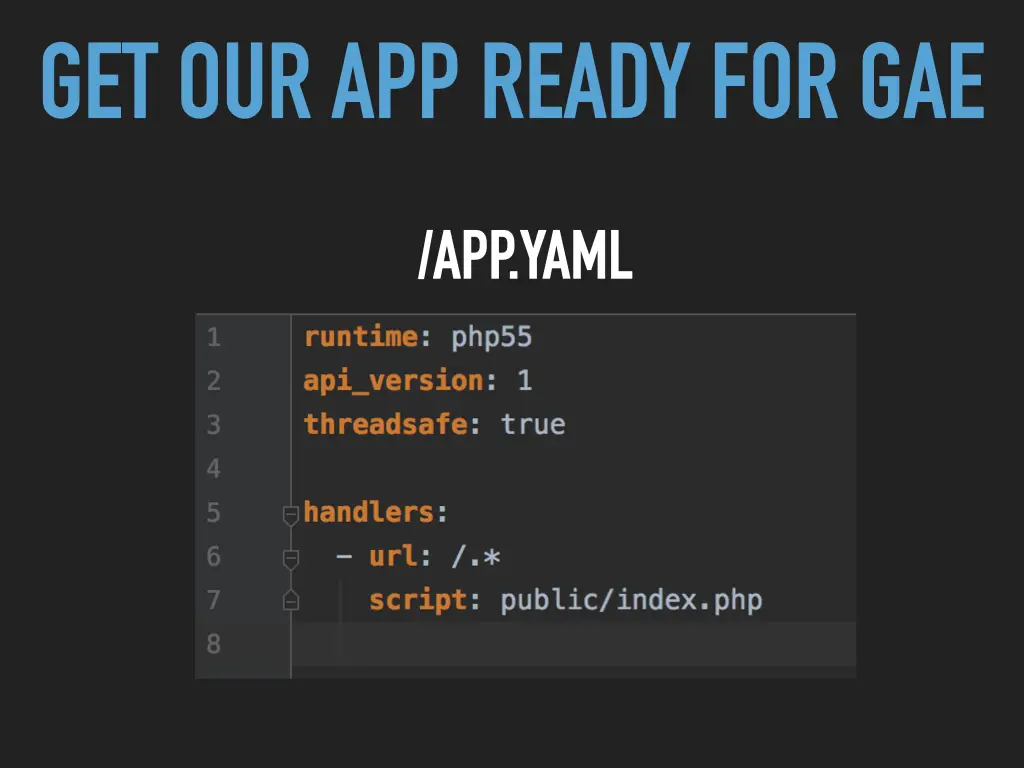
To make the app ready for App Engine you add one file, app.yaml, to the root of the repository:
runtime: php55
api_version: 1
threadsafe: true

handlers:
  - url: /.*
    script: public/index.php
It says which runtime to use and sends every URL to public/index.php. That’s the whole config.
The broken local SDK turned out to be a good argument for the rest of the talk: if deploying depends on a working setup on someone’s laptop, it will break. Let the CI do it.
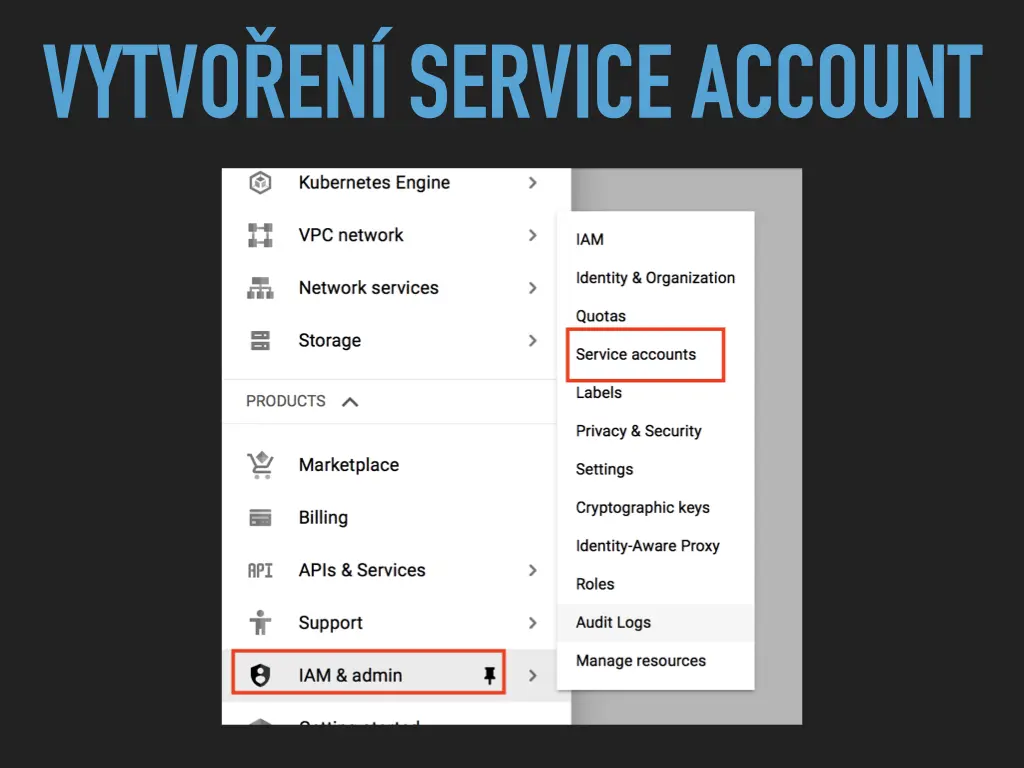
Step 2: a service account
A service account is a Google Cloud identity for a machine rather than a person. GitLab CI will log in as this account.
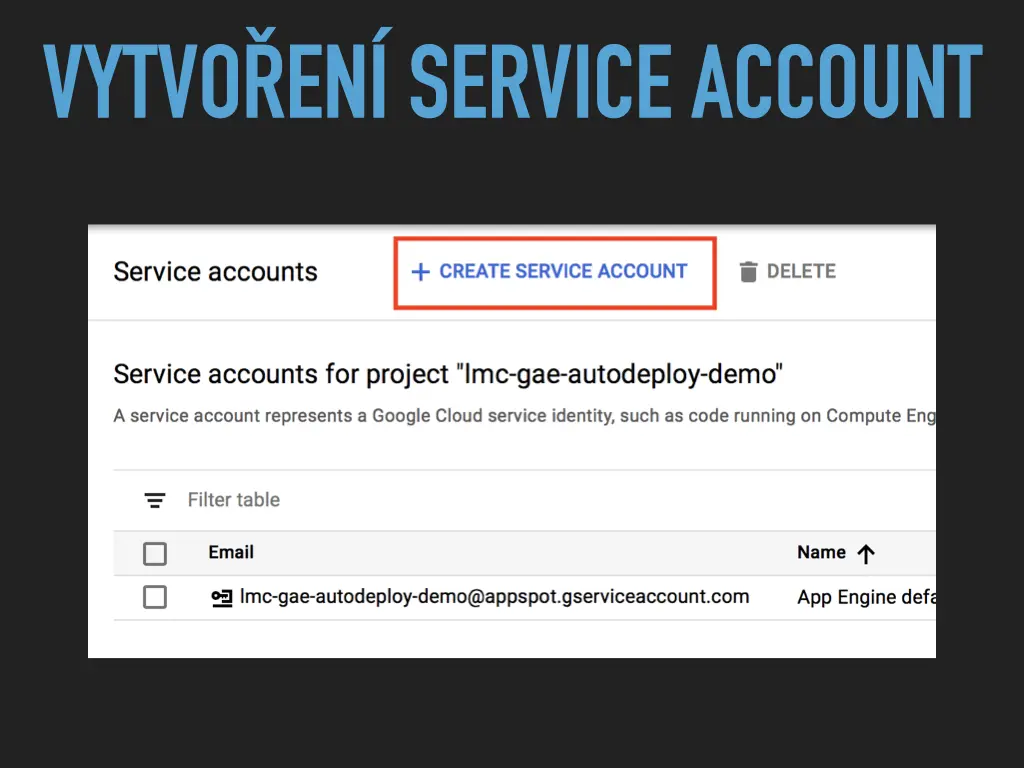
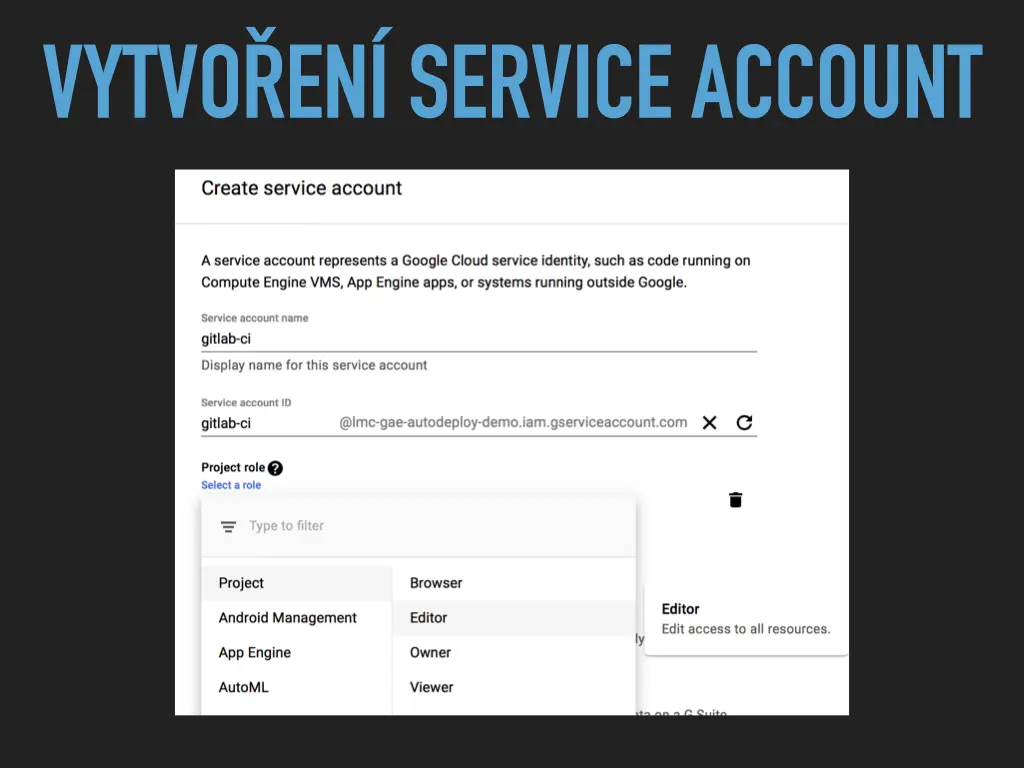
- Go to IAM & admin → Service accounts and click Create service account.
- Name it, for example
gitlab-ci. - Give it a project role. In the demo I picked Editor.
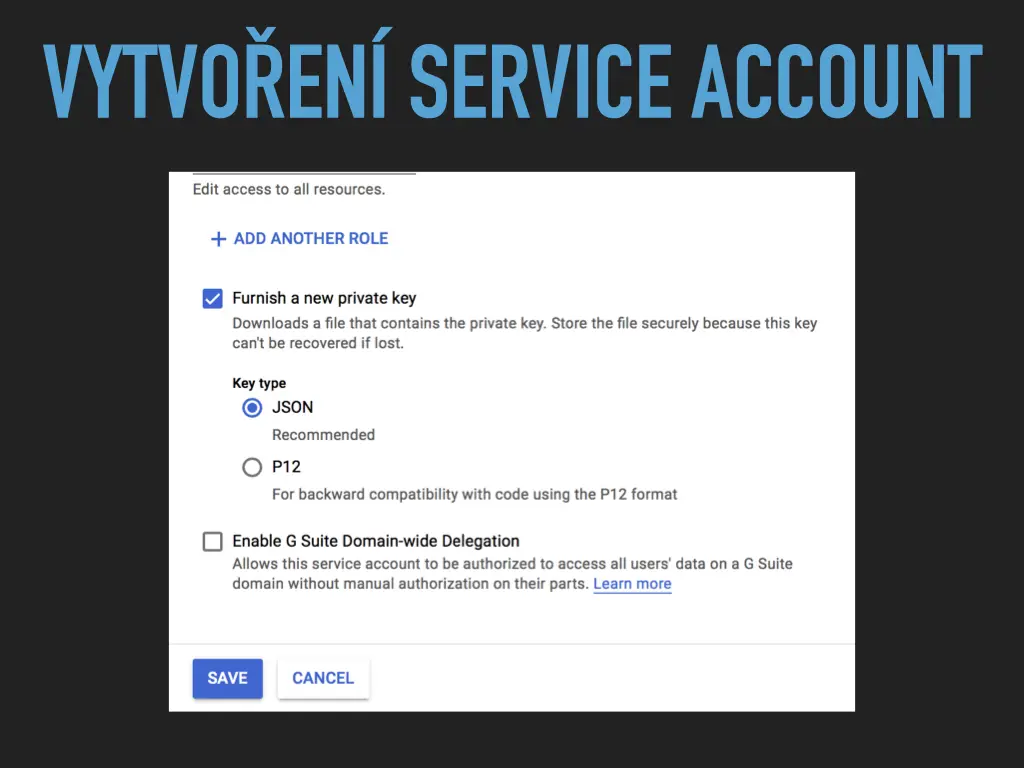
- Tick Furnish a new private key, key type JSON. Google gives you a JSON file with the key, and only once, so store it safely.
Step 3: credentials into GitLab CI
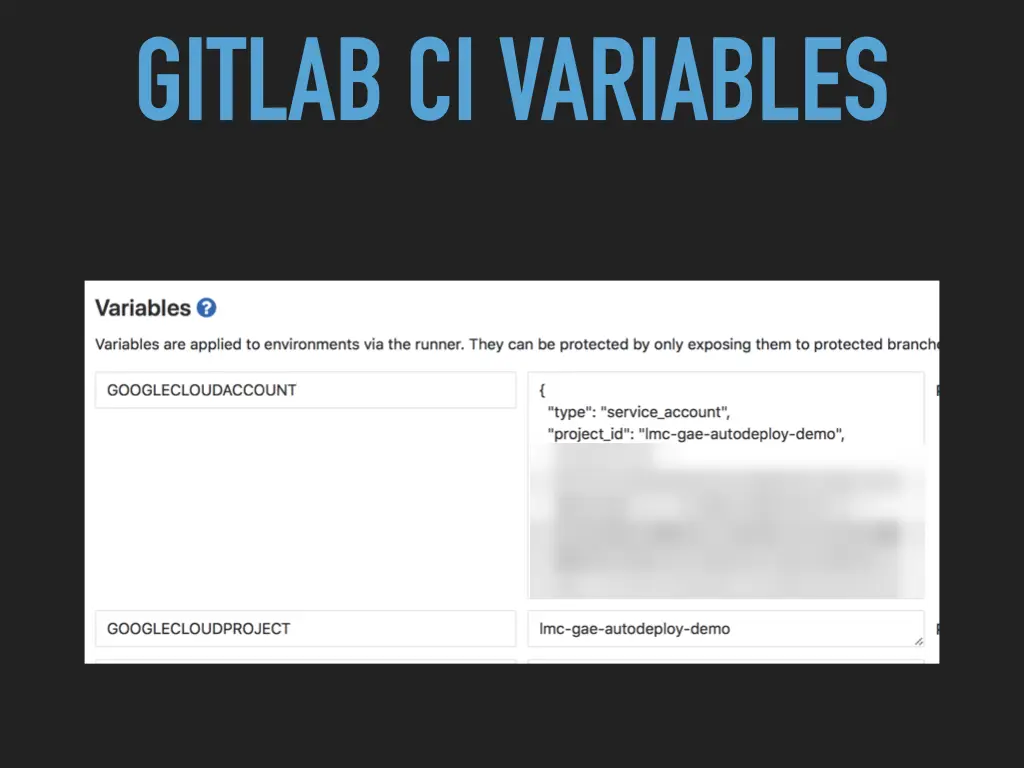
In the GitLab project, under Settings → CI/CD → Variables, I created two variables:
GOOGLECLOUDACCOUNT: the whole content of the JSON key file,GOOGLECLOUDPROJECT: the project ID,lmc-gae-autodeploy-demo.
Variables are passed to the job by the runner, so the key never sits in the repository. GitLab can also restrict them to protected branches.
Step 4: enable the App Engine Admin API
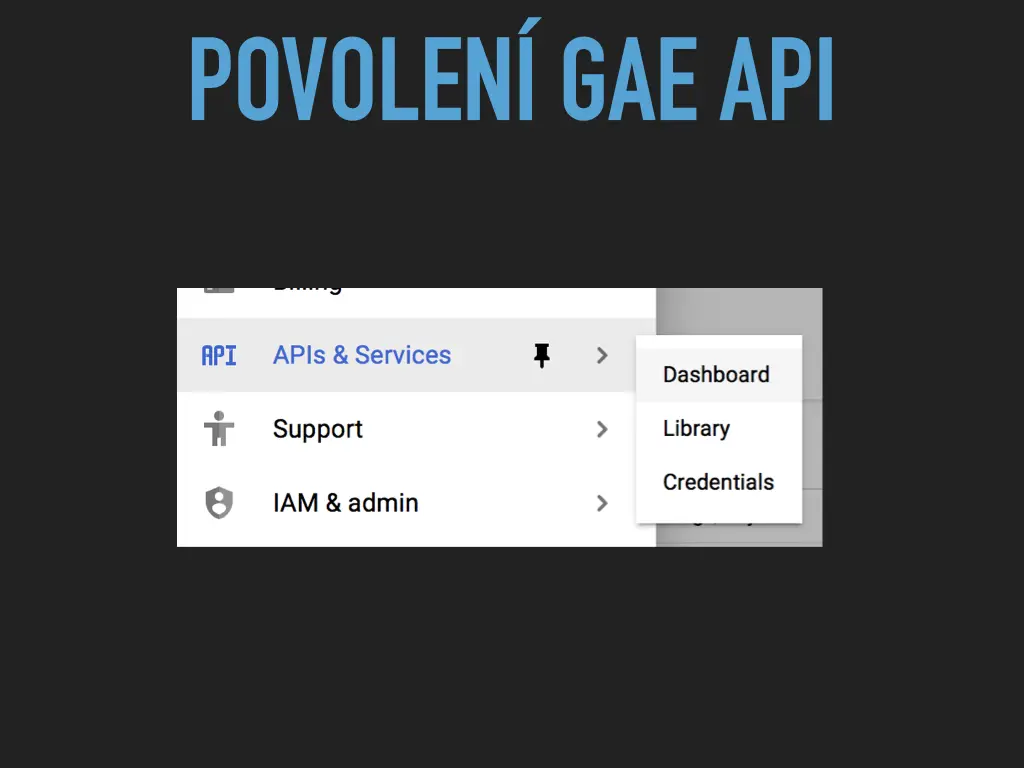
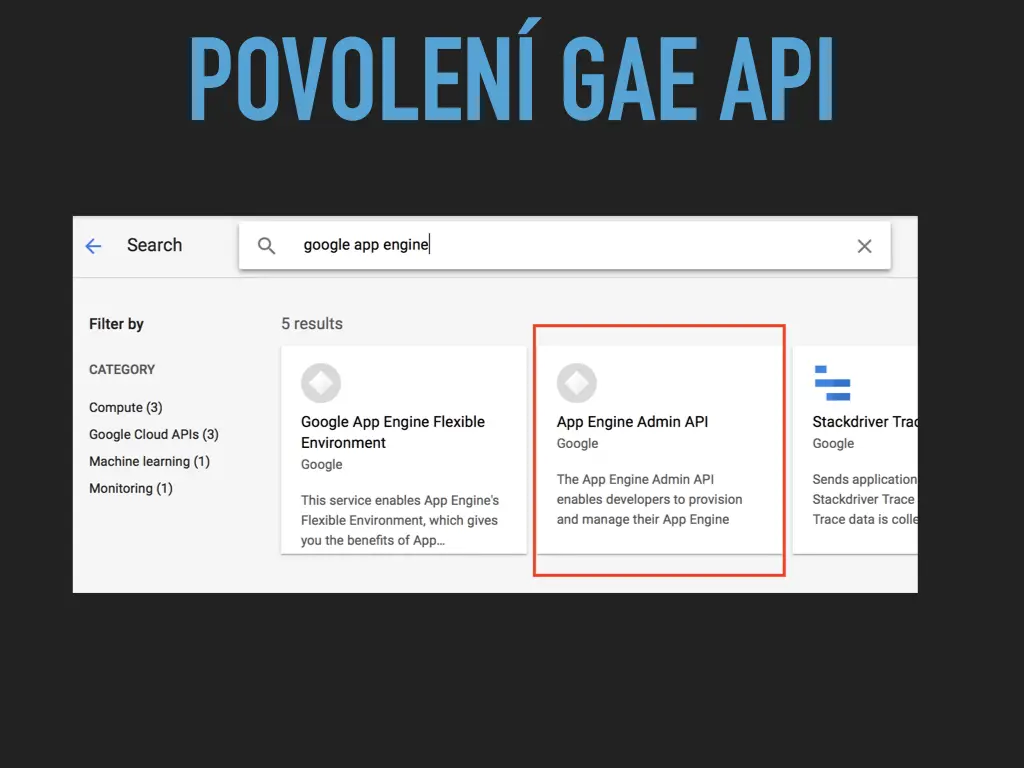
In APIs & Services → Library, search for “google app engine” and enable the App Engine Admin API. That’s the API the deploy goes through, and the service account can’t deploy until it’s on.
Step 5: .gitlab-ci.yml
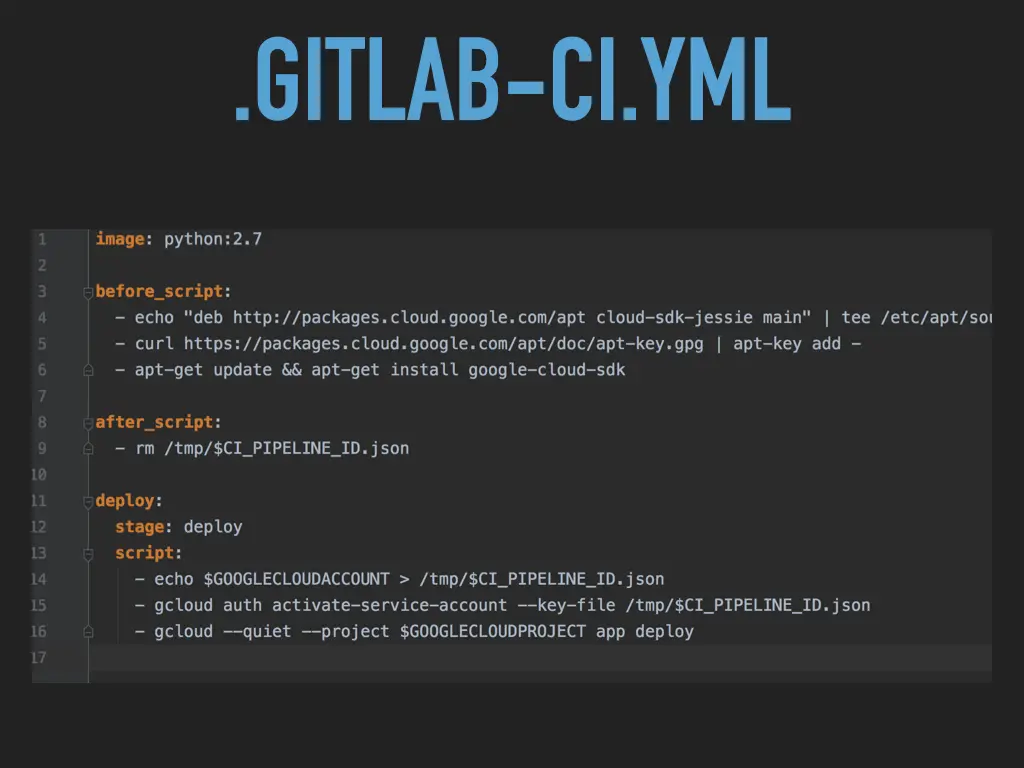
The first version installs the Google Cloud SDK into a python:2.7 image, writes the key from the variable into a temporary file, logs in with it and deploys:
image: python:2.7

before_script:
  - echo "deb http://packages.cloud.google.com/apt cloud-sdk-jessie main" | tee /etc/apt/sources.list.d/google-cloud-sdk.list
  - curl https://packages.cloud.google.com/apt/doc/apt-key.gpg | apt-key add -
  - apt-get update && apt-get install google-cloud-sdk

after_script:
  - rm /tmp/$CI_PIPELINE_ID.json

deploy:
  stage: deploy
  script:
    - echo $GOOGLECLOUDACCOUNT > /tmp/$CI_PIPELINE_ID.json
    - gcloud auth activate-service-account --key-file /tmp/$CI_PIPELINE_ID.json
    - gcloud --quiet --project $GOOGLECLOUDPROJECT app deploy
The key file is named after the pipeline ID, and after_script deletes it when the job ends. --quiet stops gcloud from asking questions nobody will answer in CI.
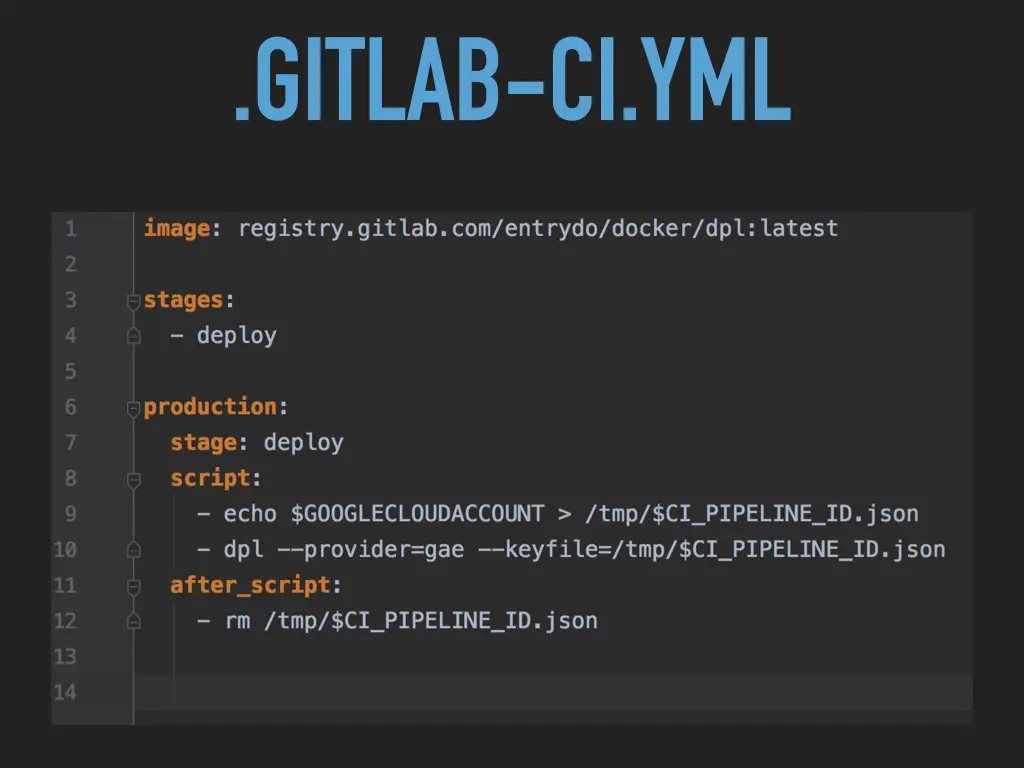
Installing the SDK on every run is slow, so the second version uses a prepared Docker image with dpl, a deploy tool from Travis CI that knows how to deploy to App Engine:
image: registry.gitlab.com/entrydo/docker/dpl:latest

stages:
  - deploy

production:
  stage: deploy
  script:
    - echo $GOOGLECLOUDACCOUNT > /tmp/$CI_PIPELINE_ID.json
    - dpl --provider=gae --keyfile=/tmp/$CI_PIPELINE_ID.json
  after_script:
    - rm /tmp/$CI_PIPELINE_ID.json
The result
![GitLab CI job log: uploading 4 files to Google Cloud Storage, updating service default, setting the traffic split, then 'Deployed service [default] to https://lmc-gae-autodeploy-demo.appspot.com', the after script removing the key file, and 'Job succeeded'. Below it a green production job in the pipeline.](/assets/talks/gitlab-ci-app-engine-autodeploy/25.webp)
Push, and the pipeline uploads the files, updates the service and prints the URL where the app now runs. Then came the live demo, with the usual “what could go wrong?”. The recording is linked below, in two parts.
#movingtogitlab
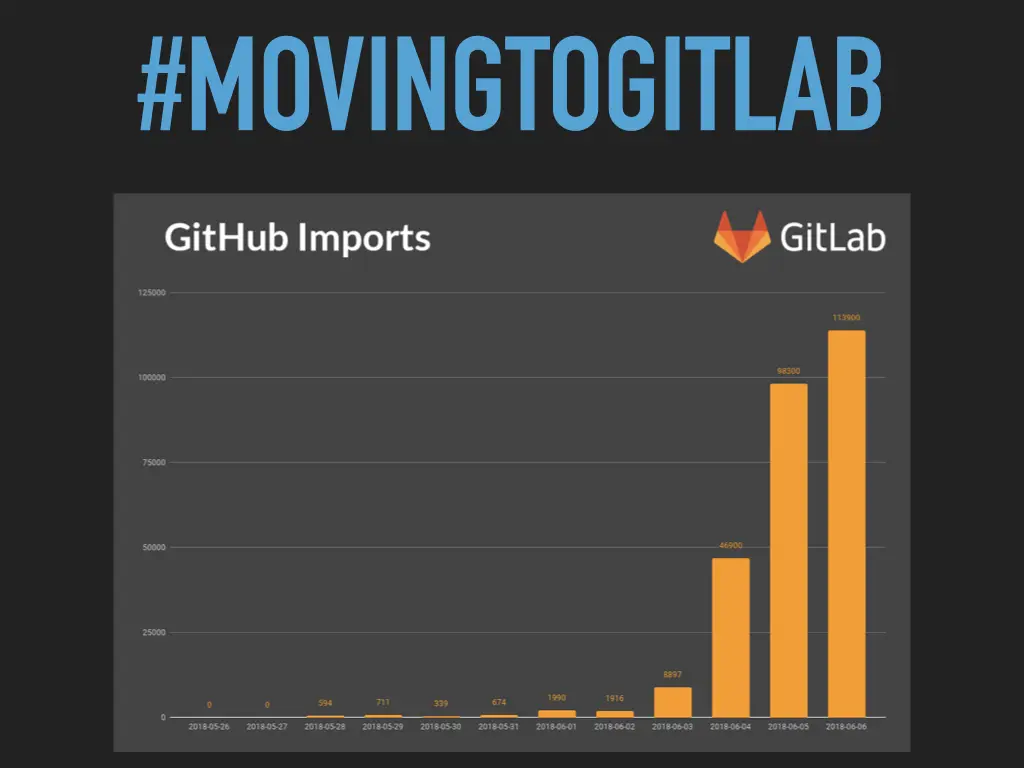
I closed with the GitLab chart of GitHub imports from early June 2018, when Microsoft announced it was buying GitHub. Imports went from a few hundred a day to over 100,000. The demo project is at gitlab.com/Lexinek/lmc-gae-autodeploy.
All 29 slides





Related talks
- The simplest GitLab CI pipeline ever · 2018
- CI in a monorepo with GitLab parent-child pipelines · 2021
- Continuous Deployment is the best! · 2022
Video (Facebook), part 1 Video (Facebook), part 2 Demo project on GitLab Google App Engine All talks