The simplest GitLab CI pipeline ever
Continuous integration sounds like a project of its own. In GitLab it starts with one file and three lines of YAML. The goal of this talk was simple: share my CI experience and show, live, how little you need to begin.
A few years before this talk I knew basically nothing about Docker, CI or even GitLab. Starting with something when you have no experience can be hard, so this talk is for that moment.
A quick show of hands
I started with some quick research in the room. Who knows GitLab exists? Most hands. Who uses GitLab? Quite a few. Who automates anything with CI? Fewer. If you didn’t raise your hand for the last one, this talk is for you.
Three lines
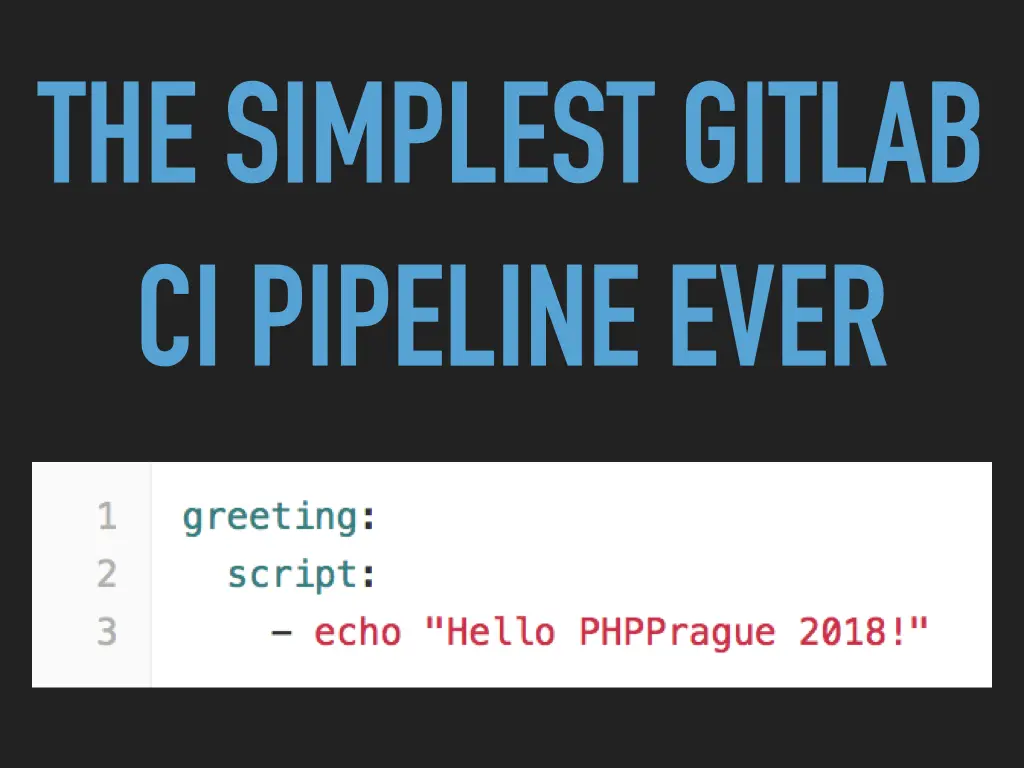
Here is the simplest GitLab CI pipeline ever:
greeting:
  script:
    - echo "Hello PHPPrague 2018!"
Commit this as .gitlab-ci.yml in the root of a GitLab repository and you have CI. greeting is the name of a job, script is the list of shell commands it runs. That’s it.
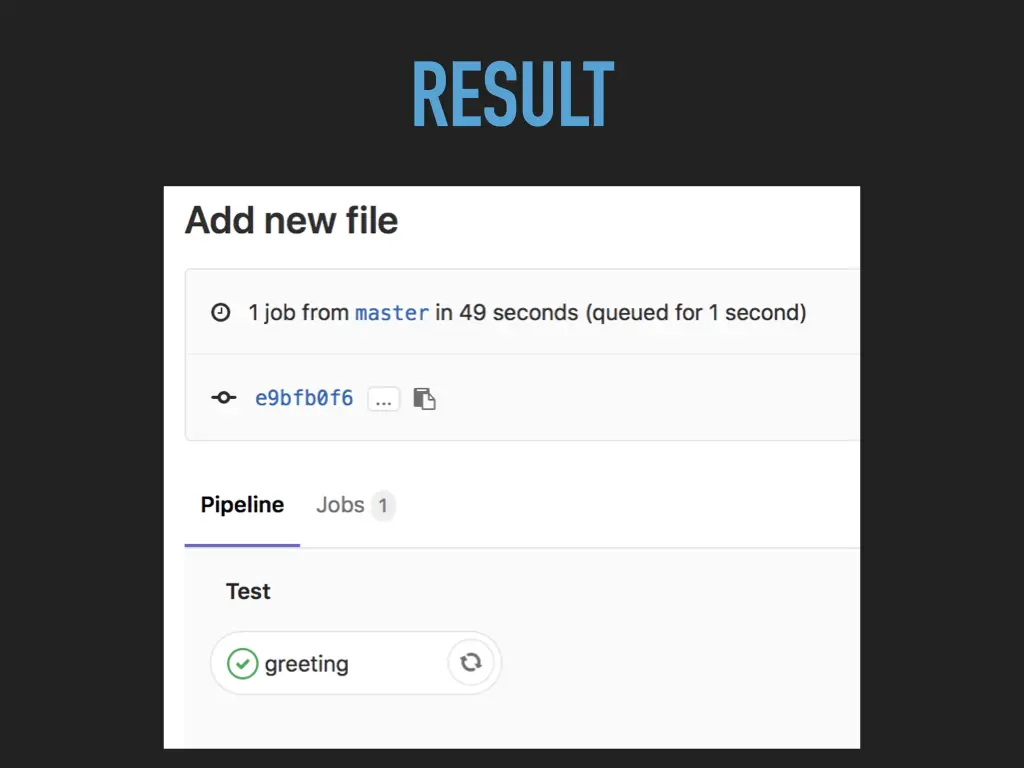
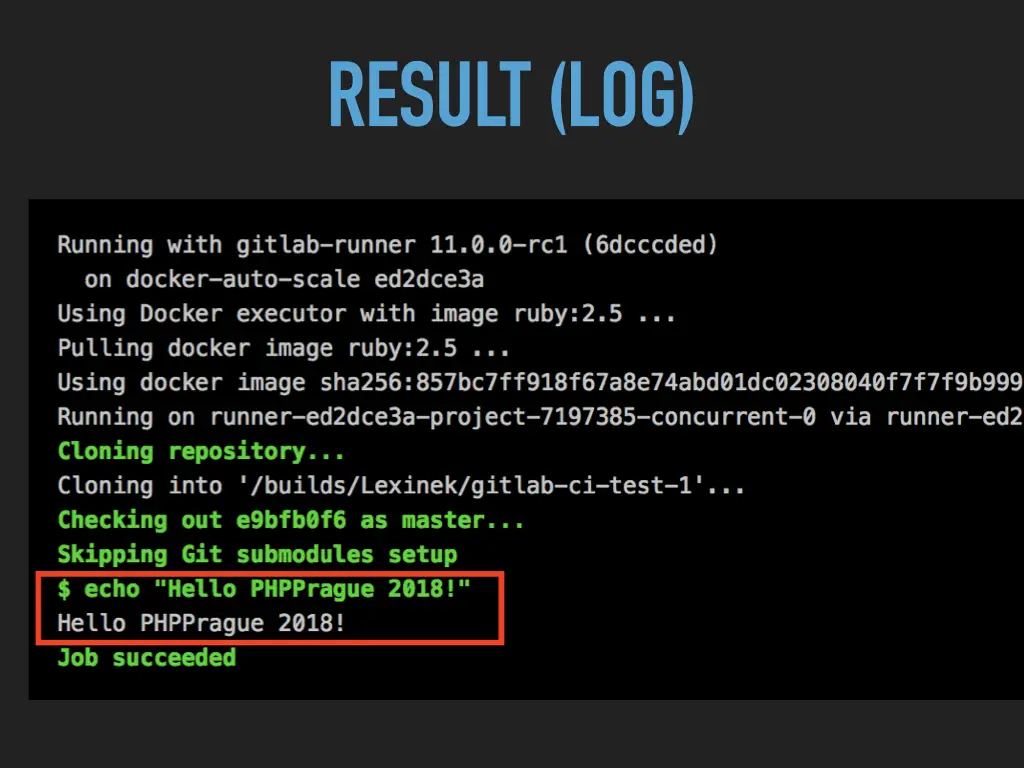
The result: one job from master, finished in 49 seconds, queued for one second. The pipeline shows a single green greeting job in the default Test stage. The job log (slightly shortened) tells the whole story:
Running with gitlab-runner 11.0.0-rc1 (6dcccded)
  on docker-auto-scale ed2dce3a
Using Docker executor with image ruby:2.5 ...
Pulling docker image ruby:2.5 ...
Cloning repository...
Cloning into '/builds/Lexinek/gitlab-ci-test-1'...
Checking out e9bfb0f6 as master...
Skipping Git submodules setup
$ echo "Hello PHPPrague 2018!"
Hello PHPPrague 2018!
Job succeeded
I didn’t pick a Docker image, so the runner used its default one. That depends on the runner’s settings; on the shared runners of GitLab.com it was ruby:2.5. I didn’t install or configure a runner either. Wasn’t that simple? At that point I thanked everyone for their attention, as if the talk were over. Then I continued.
How does it work?
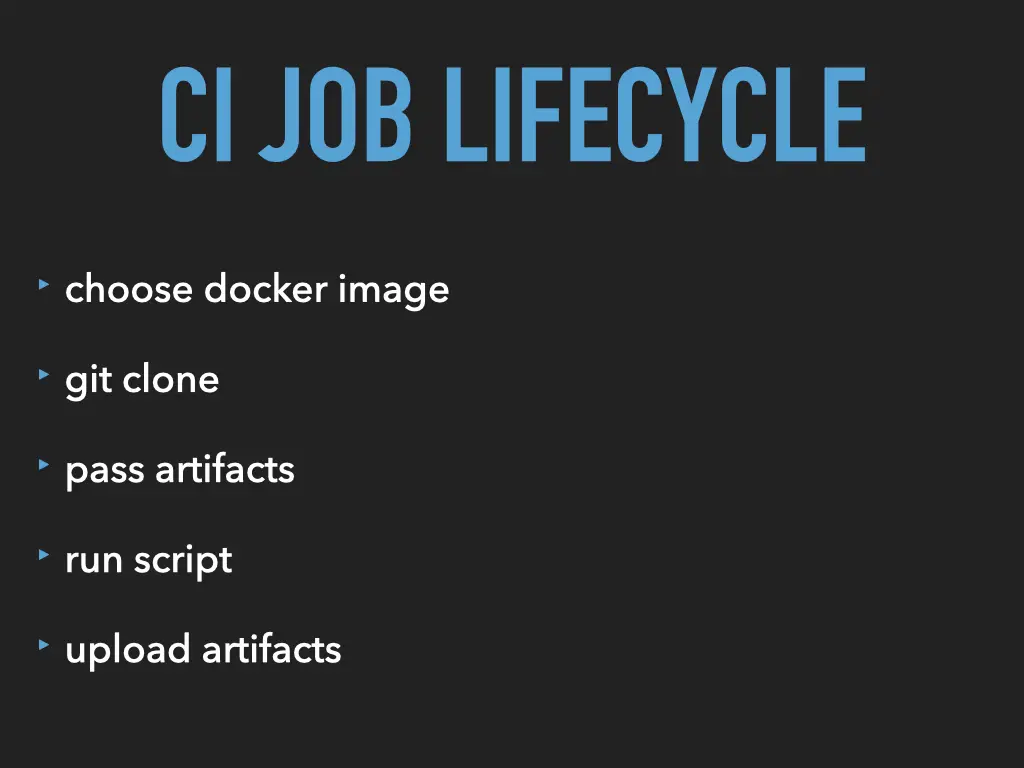
The .gitlab-ci.yml file is all you need. Nothing else. GitLab sees it on every push, creates a pipeline, and hands its jobs to runners. Every job goes through the same lifecycle, and you can follow most of it in the log above:
- choose a Docker image,
- git clone the repository,
- pass in artifacts from earlier jobs,
- run the script,
- upload its own artifacts.
Artifacts are files a job keeps after it finishes. Say one job runs composer install and a later job needs the files it created: the vendor/ directory gets passed along as an artifact, so it doesn’t have to be built again. Each job starts in a fresh container, so artifacts are how jobs share work.
A multi-stage pipeline
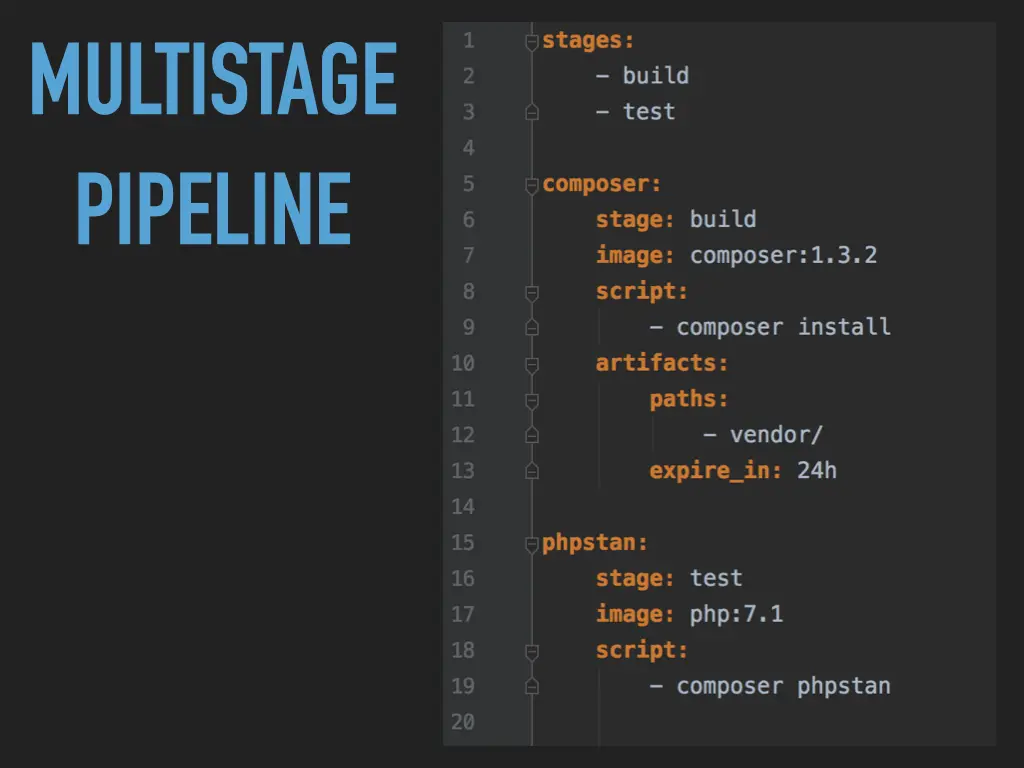
Real projects need more than one job, and some jobs have to wait for others. That’s what stages are for. The common three are build, test and deploy. A stage can hold several jobs, and those run in parallel; they don’t wait for each other. When all jobs in a stage pass, the pipeline moves to the next stage. If even a single job fails, it stops there. A typical PHP setup:
stages:
  - build
  - test

composer:
  stage: build
  image: composer:1.3.2
  script:
    - composer install
  artifacts:
    paths:
      - vendor/
    expire_in: 24h

phpstan:
  stage: test
  image: php:7.1
  script:
    - composer phpstan
The composer job installs dependencies in the official Composer image and saves vendor/ as an artifact for 24 hours. The phpstan job runs in a plain PHP image, gets vendor/ passed in, and runs static analysis. Each job picks the image that fits it. PHPStan had its own talk earlier that day, so this was the natural example. Again: easy.
Where it can go
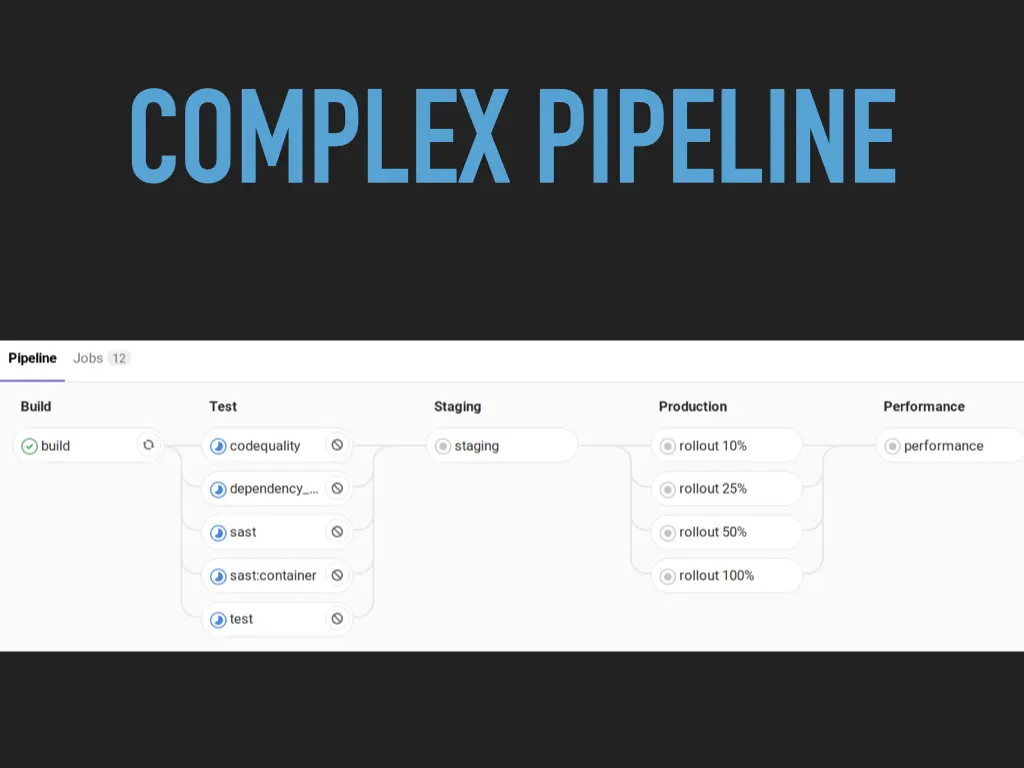
The same file scales up to this: 12 jobs in five stages instead of three, with code quality, dependency and security scanning, a staging deploy, a production rollout to 10%, 25%, 50% and then 100% of traffic, and a final performance check. Someone asked during the demo where this pipeline came from. It was an example from GitLab’s Auto DevOps, which was quite new back then, and yes, I would use it.
The demo
Then the live demo (6:34 in the video): from an empty repository on GitLab.com to a green pipeline in a few minutes. After a short fight with not being signed in, I created two files.
The first one, test.php, does nothing except end with an exit code. That is how tests work in CI: the runner checks whether the program’s exit code is zero or not. The second one was the CI config:
test:
  script:
    - php test.php
I already knew what would happen, but I wanted to show it. The pipeline started on its own, and we waited for GitLab to pull the default Ruby image. Then it failed: php: command not found. There is no PHP in a Ruby image. You never want to see that red cross, but the fix is one line, telling the runner which image to use:
test:
  image: php:7.1
  script:
    - php test.php
The pipeline ran again and failed again. This time not because of the setup: the script itself returned a non-zero exit code. That’s the normal developer loop: look at what failed, debug, fix, and get the green check. After a fix to test.php and a wait for the slow conference Wi-Fi, the job succeeded.
That’s the whole magic. You can write your tests in PHPUnit, Nette Tester or any testing framework you like; in the background CI only looks at the return code.
The last step was a quick multi-stage version. Once you have more than one stage, you have to list them under stages:. I added a first stage with a few jobs and moved the PHP test to a test stage after it. In the pipeline view you could watch the first-stage jobs run in parallel while the test job waited for all of them to succeed.
While that ran I showed one more thing: the CI Lint button (15:24 in the video). The config is standard YAML, and CI Lint checks whether your .gitlab-ci.yml is valid. I broke the indentation on purpose, and it reported the file as incorrect, with the line and column of the problem. Starting with CI on GitLab really takes minutes.
Hosted or self-hosted?
One question while the Wi-Fi was slow: GitLab.com felt slow, were we staying on it? At the time we were moving from hosted GitLab to self-hosted. Not because of speed, but because of features: the self-hosted version and its Kubernetes cluster integration felt like magic.
GitLab is much more than Git
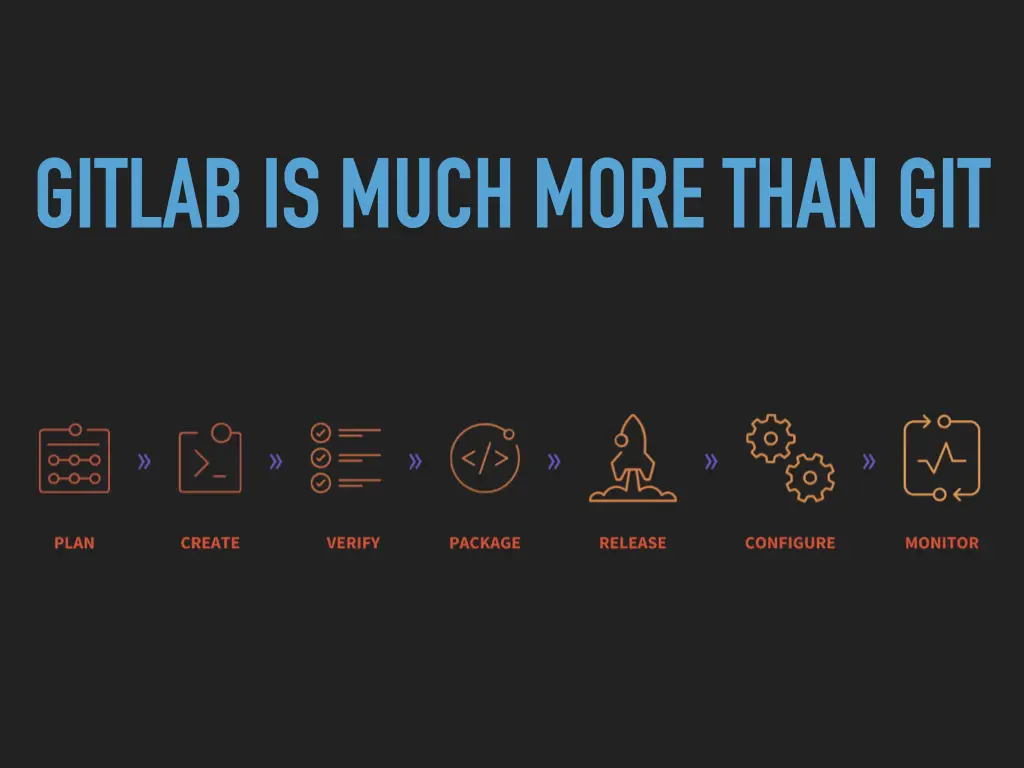
For a lot of people, GitHub, GitLab or Bitbucket are just storage for Git repositories. GitLab is much more. It covers the whole cycle: plan, create, verify, package, release, configure and monitor. CI is the “verify” part. If you work with Docker you know Docker Hub; GitLab has its own registry for Docker images built in, which makes working with CI even easier. Its ambition is to be the number one all-in-one platform for development and DevOps, not only a place for your repositories.
My comparison: GitHub is a very good place for open source. For a company project with more people, code you don’t want to share in public, and more complex pipelines, GitLab is number one for me.
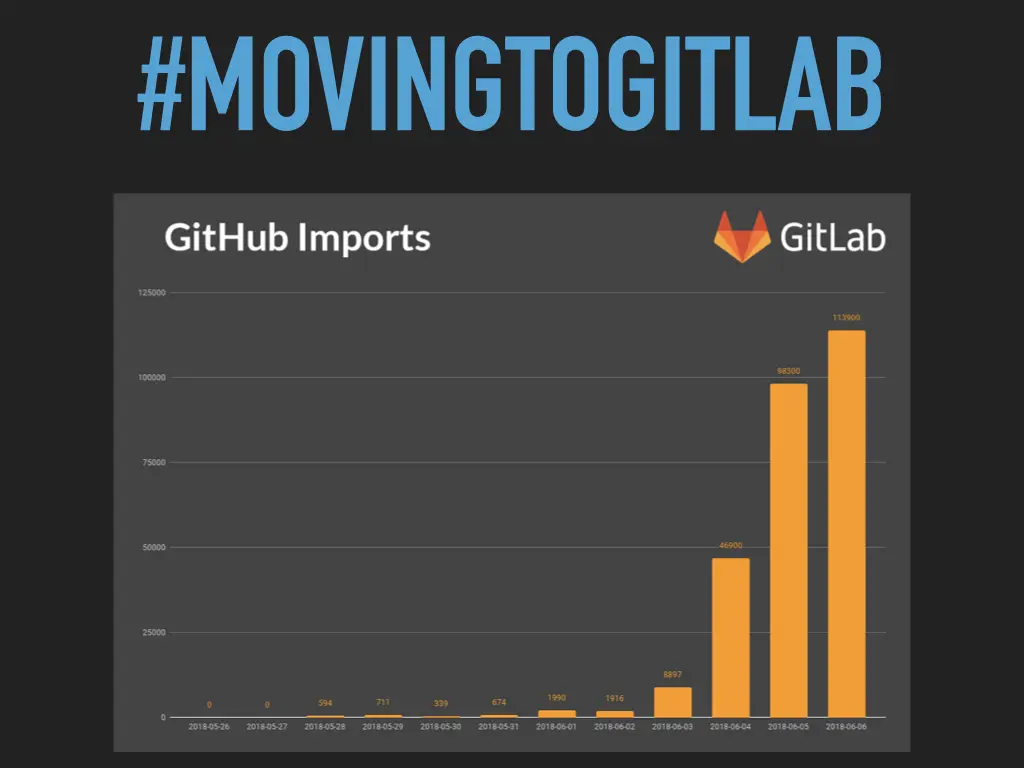
The timing was interesting. A few weeks before the talk, imports of GitHub projects into GitLab jumped from hundreds a day to 46,900 on 4 June, 98,300 on 5 June and 113,900 on 6 June. That was the week Microsoft announced it was buying GitHub. Developers panicked, because when Microsoft buys something it often doesn’t end well, and #movingtogitlab was all over Twitter. That’s also part of why GitLab.com was slow those days. I said the panic wasn’t necessary: many people were moving for no real reason. Don’t hurry, wait and see what comes out of it.